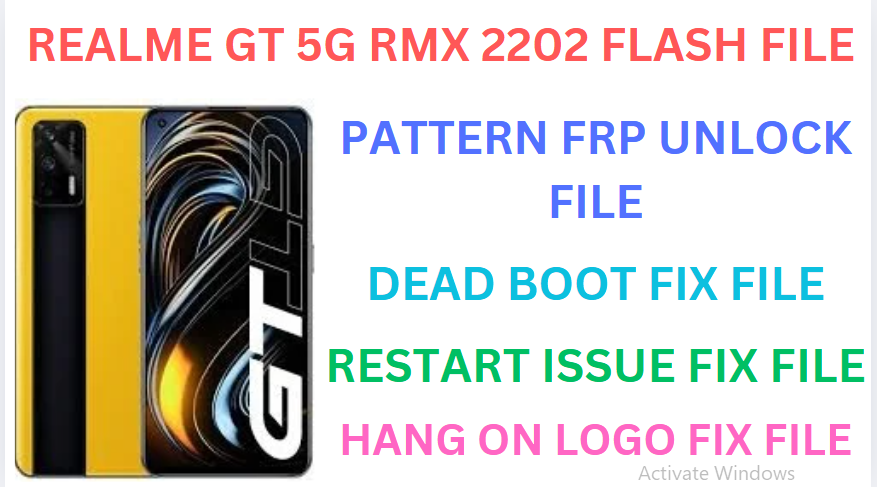
The Realme GT 5G (RMX2202) is a flagship-level smartphone that delivers top-tier performance with a focus on speed, gaming, and a premium experience.
Key Specifications:
✅ Display:
- 6.43-inch Super AMOLED
- Full HD+ (2400 x 1080) resolution
- 120Hz refresh rate for smooth visuals
- 1000 nits peak brightness
✅ Processor:
- Qualcomm Snapdragon 888 (5nm) – a flagship chipset for ultra-fast performance
- Adreno 660 GPU for high-end gaming
✅ RAM & Storage:
- 8GB / 12GB RAM
- 128GB / 256GB UFS 3.1 storage (no microSD slot)
✅ Cameras:
- Rear: 64MP (Sony IMX682, f/1.8) + 8MP (ultrawide) + 2MP (macro)
- Front: 16MP selfie camera
✅ Battery:
- 4500mAh battery
- 65W SuperDart fast charging (0-100% in about 35 minutes)
Warning:
Flashing your device will erase all data. Backup your important data before proceeding.
Ensure you are using the correct firmware for your device to avoid bricking it.
—
Requirements:
1. MSM Download Tool
Download the appropriate version for Realme GT 5G.
2. Firmware File
Obtain the correct official firmware for the Realme GT 5G RMX2202
3. Qualcomm USB Drivers
Install Qualcomm drivers to allow your computer to detect the device in EDL (Emergency Download Mode).
4. USB Cable
Use the original or a high-quality USB cable.
5. Windows PC
The MSM Tool only works on Windows.
—
Steps to Flash Realme GT 5G RMX2202 :
1. Install Required Drivers
Install the Qualcomm USB drivers on your PC.
Restart your computer after installation.
2. Download Firmware and MSM Tool
Extract the firmware and MSM Download Tool files into a folder.
3. Put Device in EDL Mode
Turn off the device.
Press and hold Volume Up + Volume Down buttons together.
Connect the device to the PC via a USB cable while holding the buttons.
4. Open MSM Download Tool
Launch the MSM Download Tool as an administrator.
Enter the credentials (if required). Usually, “oppo” or “realme” is used as the password.
5. Load the Firmware
In the MSM Download Tool, click on the Load Firmware button.
Navigate to the extracted firmware folder and select the correct .ofp file.
6. Detect Device
Ensure your device is detected in the tool. It should appear as a COM port (e.g., COM3 or COM4).
7. Start Flashing
Click the Start button in the MSM Download Tool.
Wait for the process to complete (this may take 5-10 minutes).
Once completed, you will see a “Download Complete” message.
8. Reboot Device
Disconnect the device and power it on.