



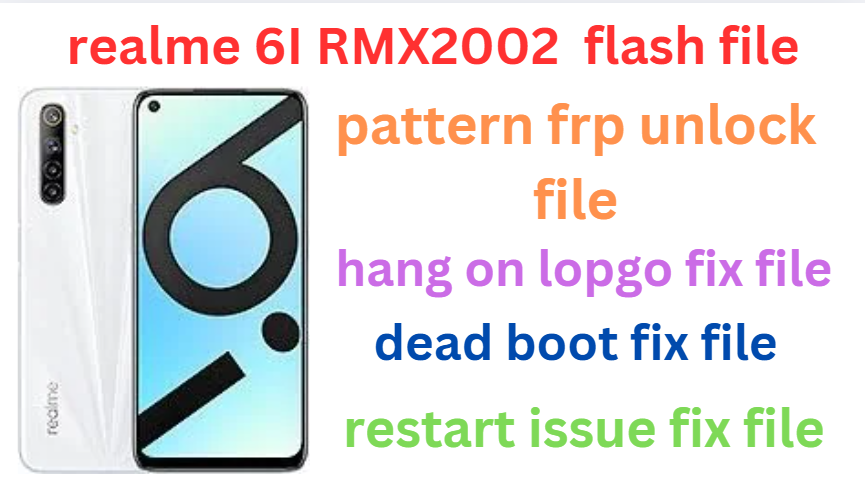
Realme 6i RMX2002 Firmware Stock ROM (Flash File)
Realme 6i RMX2002 Latest Flash File used for flash and unlock your device fix pattern lock, FRP and other problems like hang on logo, brick after software update or in any experiment , fix hanging issue and other software related issues. Realme flash tool required login credential to run, if you don’t have then contact me for flash. it’s paid service. Always use latest flash file to flash your device.
Download Realme 6i RMX2002 FLASH FILE
RMX2002export_11_C.19_2022050521330000
PAID FILE
Reseller India
———————–
Ramzan Gsm
Gsm Online Services
Country : India
WhatsApp, https://wa.me/919036266587
Call +919036266587
Website : https://www.ramzangsm.com/
ALL MOBILE FLASHING UNLOCKING HANG ON LOGO FIX
SERVICE AVAILABLE VIA ULTRA VIEWER / TEAM VIEWER
ABOUT: Realme 6i RMX2002
The Realme 6i (RMX2002) is a budget smartphone launched in March 2020, offering decent performance, a large battery, and a quad-camera setup at an affordable price. Here’s a full breakdown:
📱 Specifications:
- Display: 6.5-inch IPS LCD, HD+ (1600 × 720 pixels), 20:9 aspect ratio, Mini-drop notch, Corning Gorilla Glass 3
- Processor: MediaTek Helio G80 (12nm, Octa-core, gaming-focused chipset)
- GPU: Mali-G52 MC2
- RAM & Storage:
- 3GB/64GB
- 4GB/128GB
- Expandable storage via microSD (Dedicated slot)
- Cameras:
- Rear: 48MP (main) + 8MP (ultrawide) + 2MP (macro) + 2MP (depth)
- Front: 16MP AI Selfie Camera
- Battery: 5000mAh with 18W fast charging (USB Type-C)
- Software: Realme UI 1.0 (Android 10) (Upgradable to Android 11, Realme UI 2.0)
- Build: Plastic back, Gorilla Glass 3 front
Preparation
1. Backup Your Data: Flashing will erase all data. Make a full backup of your files, apps, and settings.
2. Ensure Battery Level: Charge your phone to at least 50% to avoid interruptions.
3. Download Required Files:
Stock Firmware: Download the latest official Realme 6I firmware for RMX2002 from GSMHUB24.COM website or trusted sources.
MSM TOOL: Required for MediaTek devices.
Drivers: Install MediaTek USB VCOM drivers on your PC.
4. PC with Windows OS: You’ll need a PC with a USB cable for the flashing process.
—
Flashing Process with MSM TOOL
1. Install USB Drivers:
Install the MediaTek USB VCOM drivers on your PC to ensure proper device connection.
2. Extract Firmware:
Unzip the downloaded firmware file to your PC. Ensure you locate the .scatter file.
3. Install MSMTOOL:
Download and extract the MSMTOOL.
Open the tool and launch the flash_tool.exe.
4. Load Firmware:
In MSMTOOL, click on the “Scatter-loading” option.
Select the scatter.txt file from the extracted firmware folder.
5. Select Flash Mode:
Choose the download option for flashing.
Uncheck “Preloader” to avoid accidental bricking unless you’re sure of compatibility.
6. Connect Device:
Turn off your Realme 6I.
Hold the Volume Down or Volume Up button and connect it to your PC via USB.
7. Start Flashing:
Click on the “Download” button in MSM TOOL.
The flashing process will start and may take several minutes.
8. Completion:
Once finished, you’ll see a green checkmark.
Disconnect the device and reboot it.
Warnings
Ensure you use the correct firmware for the RMX2002 model to prevent bricking.
Flashing can void your warranty if it’s unofficial.
Proceed at your own risk if you’re not familiar with the process.