



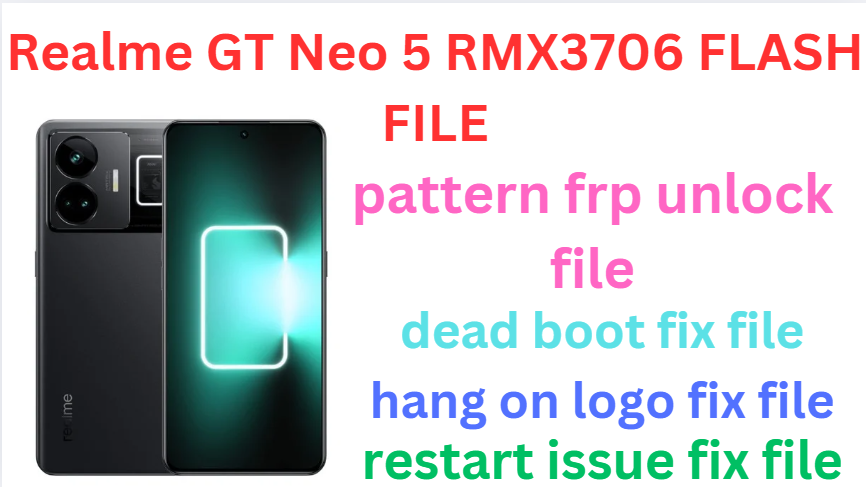
Realme GT Neo 5 RMX3706 (Stock ROM) Flash File
Realme GT Neo 5 RMX3706 Flash File used for flash and unlock your device fix pattern lock, FRP and other problems like hang on logo, brick after software update or in any experiment , fix hanging issue and other software related issues. Realme flash tool required login credential to run, if you don’t have then contact me for flash. it’s paid service. Always use latest flash file to flash your device.
Download Realme GT Neo 5 RMX3706 FLASH FILE
RMX3706domestic_11_A.36_2023051521360130.zip
PAID FILE
Reseller India
———————–
Ramzan Gsm
Gsm Online Services
Country : India
WhatsApp, https://wa.me/919036266587
Call +919036266587
Website : https://www.ramzangsm.com/
ALL MOBILE FLASHING UNLOCKING HANG ON LOGO FIX
SERVICE AVAILABLE VIA ULTRA VIEWER / TEAM VIEWER
ABOUT: Realme GT Neo 5 RMX3706
The Realme GT Neo 5, model number RMX3706, is a high-performance smartphone announced in February 2023. It features a 6.74-inch AMOLED display with a resolution of 1240 x 2772 pixels, delivering vibrant visuals. Powered by the Qualcomm Snapdragon 8+ Gen 1 processor, it ensures robust performance for demanding applications.
The device offers multiple configurations, including 8GB, 12GB, or 16GB of RAM, paired with storage options of 256GB, 512GB, or 1TB, catering to various user needs. For photography, it boasts a triple rear camera setup: a 50MP main sensor with Optical Image Stabilization (OIS), an 8MP ultrawide lens, and a 2MP microscope lens. On the front, there’s a 16MP camera for selfies and video calls.
The GT Neo 5 RMX3706 is equipped with a 5,000mAh battery and supports 150W fast charging, ensuring quick power replenishment. It runs on Android 13 with Realme UI 4.0, providing an up-to-date software experience. Additional features include an in-display fingerprint scanner, 5G connectivity, and an IR blaster.
In terms of design, the smartphone measures 163.85 x 75.75 x 8.9mm and weighs approximately 199 grams, offering a balanced feel in hand.
Overall, the Realme GT Neo 5 RMX3706 combines powerful hardware with advanced features, making it a compelling choice for users seeking a high-performance smartphone
Warning:
Flashing your device will erase all data. Backup your important data before proceeding.
Ensure you are using the correct firmware for your device to avoid bricking it.
—
Requirements:
1. MSM Download Tool
Download the appropriate version for Realme GT NEO 5.
2. Firmware File
Obtain the correct official firmware for the Realme GT Neo 5 RMX3706 .
3. Qualcomm USB Drivers
Install Qualcomm drivers to allow your computer to detect the device in EDL (Emergency Download Mode).
4. USB Cable
Use the original or a high-quality USB cable.
5. Windows PC
The MSM Tool only works on Windows.
—
Steps to Flash Realme GT Neo 5 RMX3706 :
1. Install Required Drivers
Install the Qualcomm USB drivers on your PC.
Restart your computer after installation.
2. Download Firmware and MSM Tool
Extract the firmware and MSM Download Tool files into a folder.
3. Put Device in EDL Mode
Turn off the device.
Press and hold Volume Up + Volume Down buttons together.
Connect the device to the PC via a USB cable while holding the buttons.
4. Open MSM Download Tool
Launch the MSM Download Tool as an administrator.
Enter the credentials (if required). Usually, “oppo” or “realme” is used as the password.
5. Load the Firmware
In the MSM Download Tool, click on the Load Firmware button.
Navigate to the extracted firmware folder and select the correct .ofp file.
6. Detect Device
Ensure your device is detected in the tool. It should appear as a COM port (e.g., COM3 or COM4).
7. Start Flashing
Click the Start button in the MSM Download Tool.
Wait for the process to complete (this may take 5-10 minutes).
Once completed, you will see a “Download Complete” message.
8. Reboot Device
Disconnect the device and power it on.
—
Troubleshooting Tips:
Device Not Detected:
Check if the Qualcomm drivers are properly installed. Use another USB cable or port if necessary.
MSM Tool Error:
Ensure the tool matches your device model and firmware. Disable antivirus temporarily as it may block the tool.
Boot Loop After Flashing:
Perform a factory reset by booting into recovery mode.
.